SongTrail — Android
How to use
SongTrail.
Contents
What SongTrail is
SongTrail is an offline music player for local files. Three things define it, and they explain most of the design decisions in this guide:
- Folder-first. The browser shows your folder structure as it exists on disk. If your
music lives in
Music/Artist/Album/, that is exactly what you navigate. Nothing is reorganised into an artist list assembled from tags. - Read-only. SongTrail never writes to, renames, moves, or deletes your audio files or artwork. Every edit you make in the app — a corrected title, a rating, an album date — is stored separately in the app's own database and layered over the file.
- Offline. There is no account, no streaming, no sync, and no backend. Browsing, playback, scanning, album art, search and backup are entirely offline.
First run
The first thing SongTrail asks for is the one thing it genuinely needs: which folder your music is in. This is the highest-friction moment in the app, so it is worth understanding what is happening.
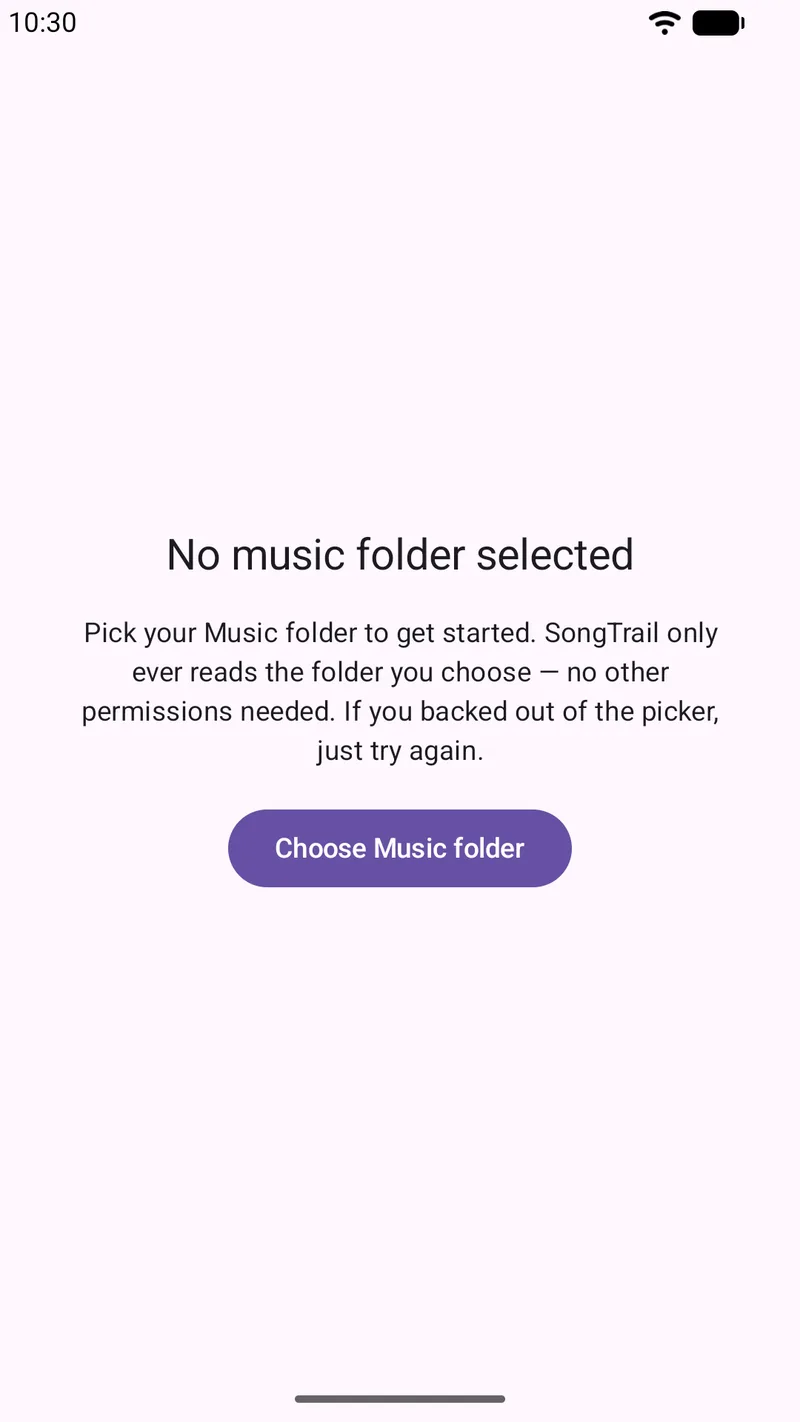
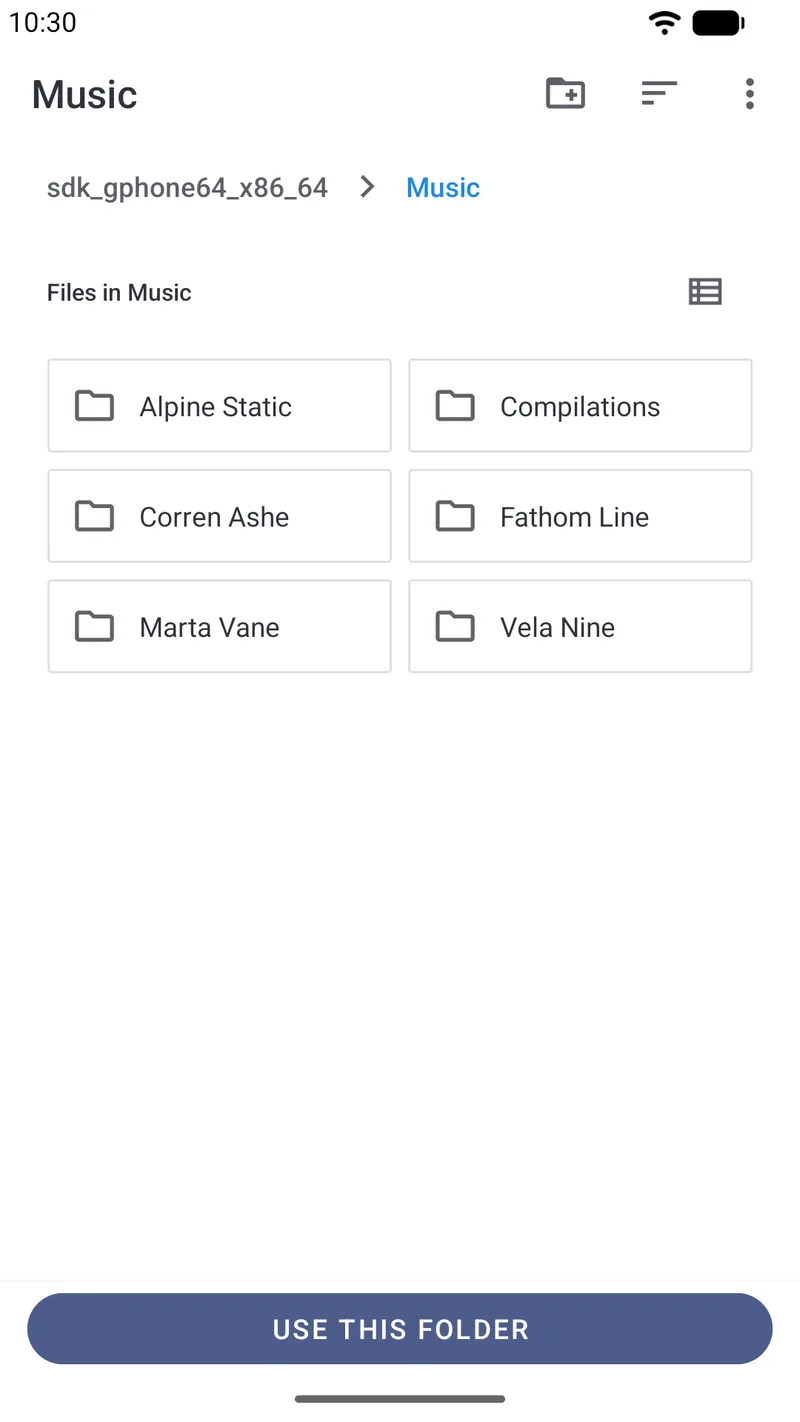
- Tap Choose Music folder. Android's own folder picker opens — this is a system screen, not a SongTrail screen.
- Navigate to the folder that contains your music and tap USE THIS FOLDER. Pick the parent folder, not an individual album: SongTrail reads everything beneath whatever you choose.
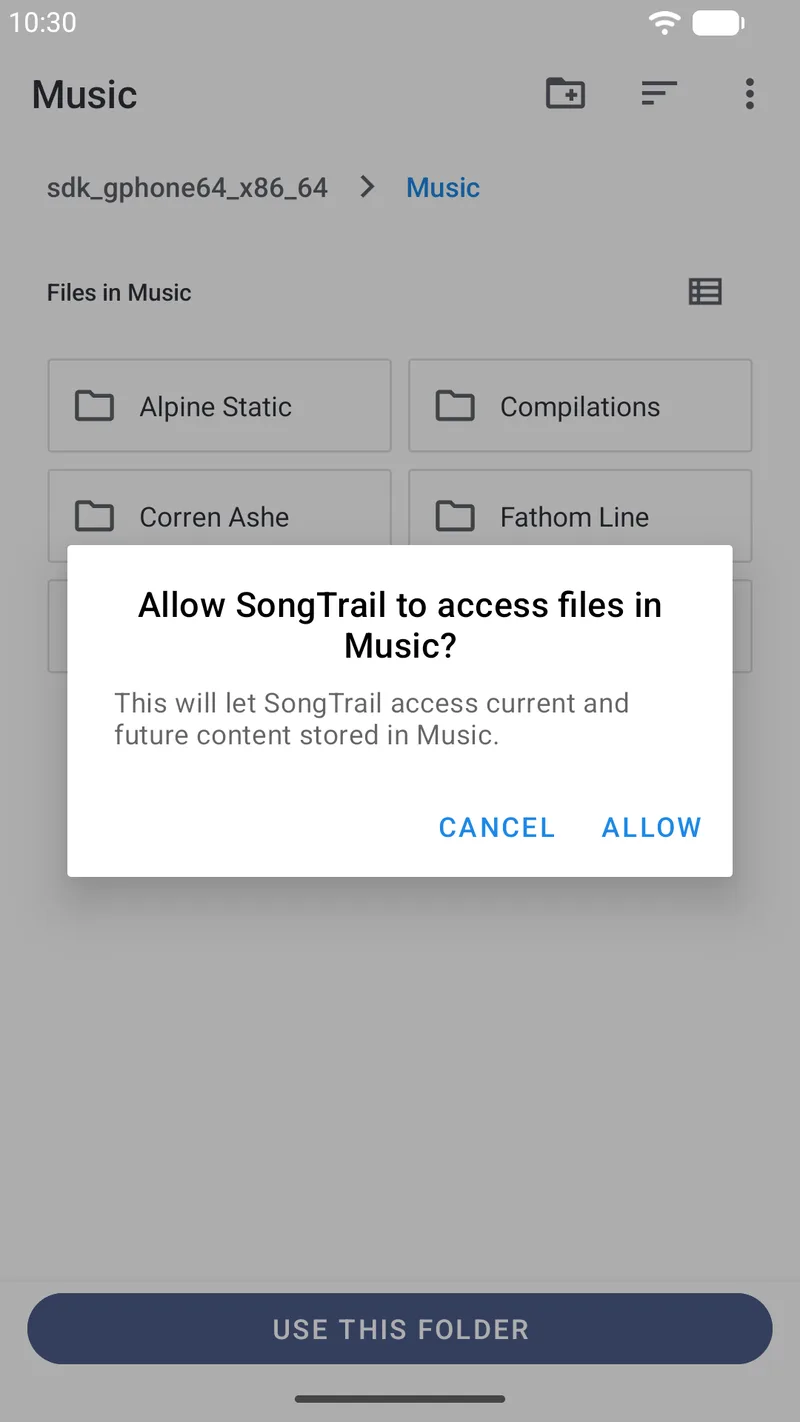
- Android asks you to confirm. Tap ALLOW.
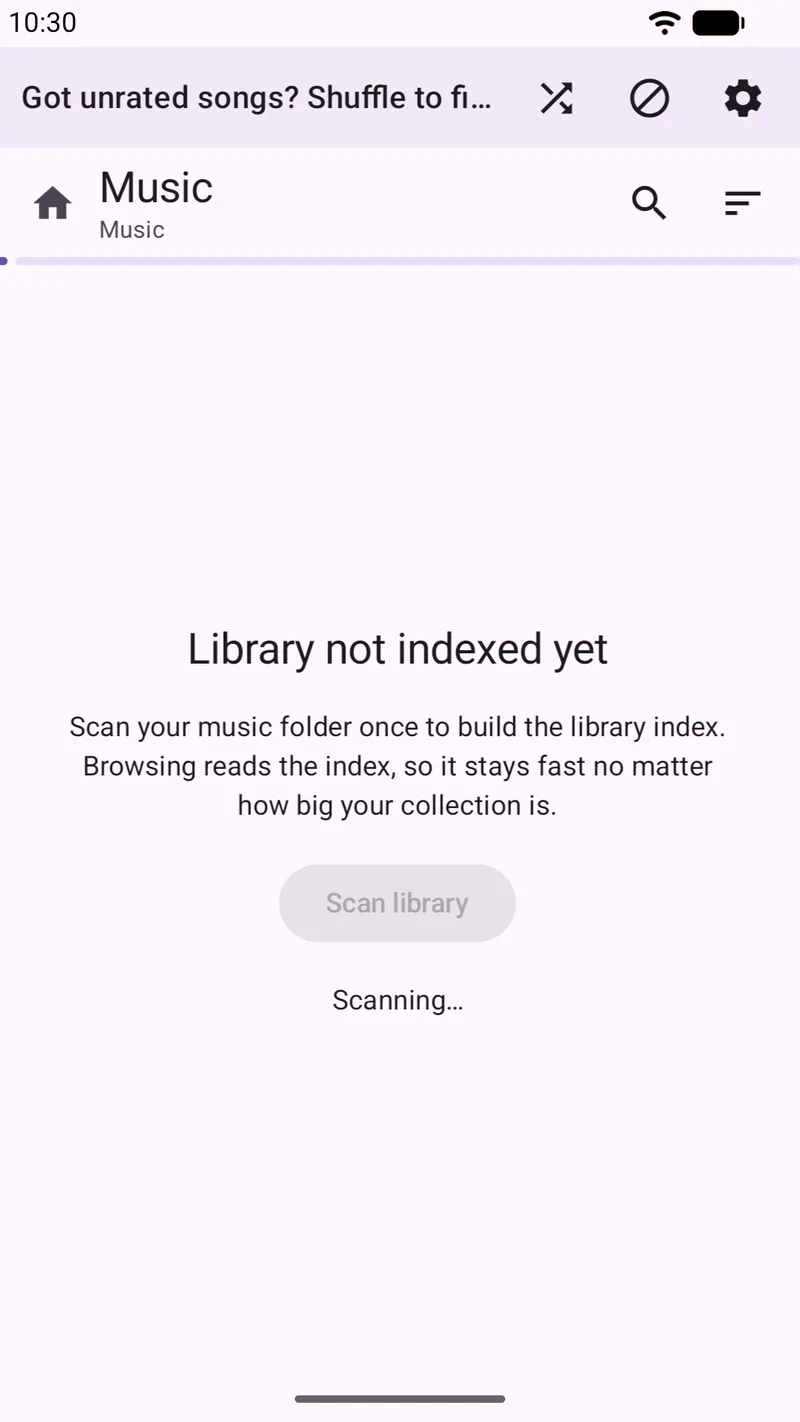
- SongTrail scans the folder once and builds its index. After that, browsing reads the index, so it stays fast no matter how large your collection is.
Browsing and playing
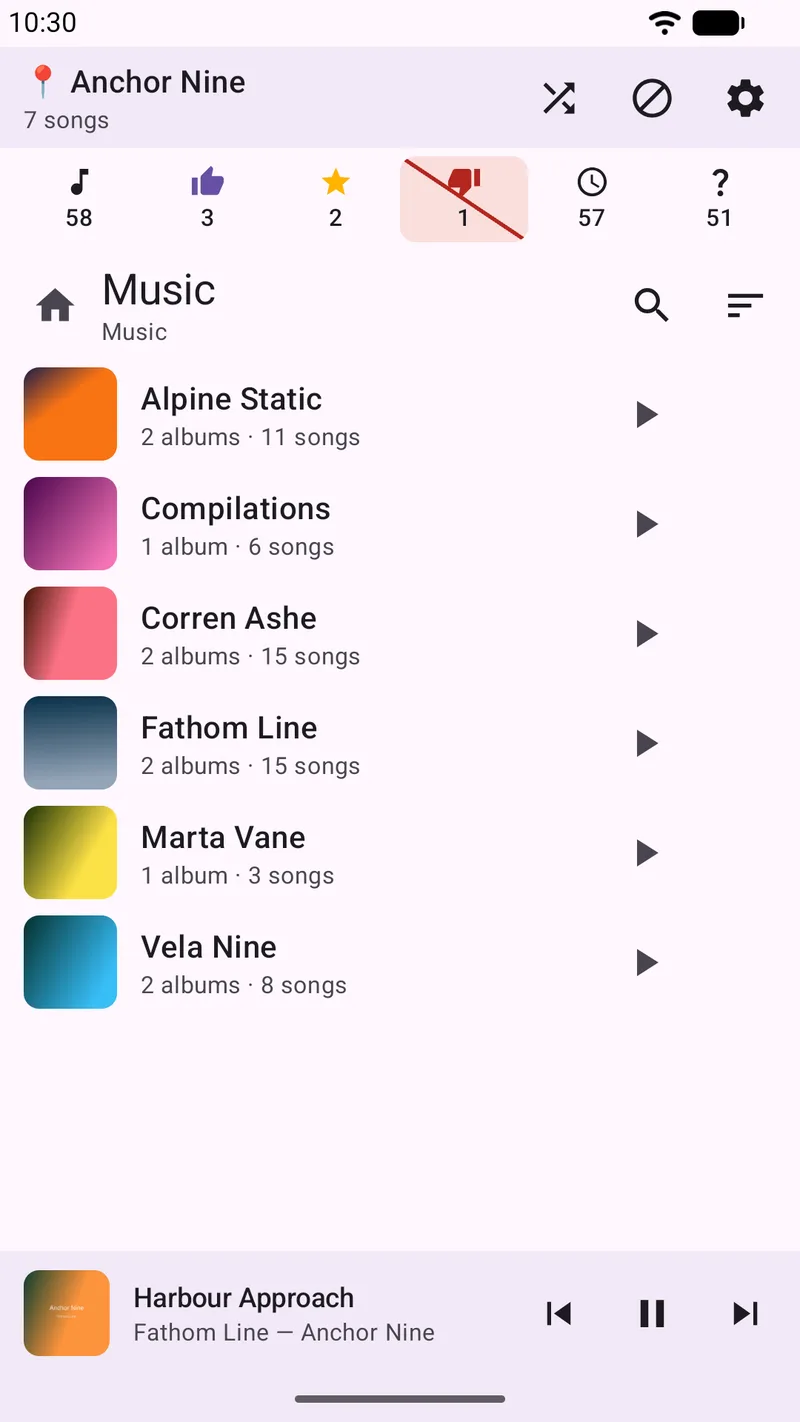
The folder tree is the interface. Tap a folder to go into it, tap a song to play it, and use the back arrow or the breadcrumb under the title to come back up.
You can play from any level. Every folder row has a play button that starts everything beneath it — a whole artist, a whole album, or your entire library from the top. You do not have to drill down to a track list first.
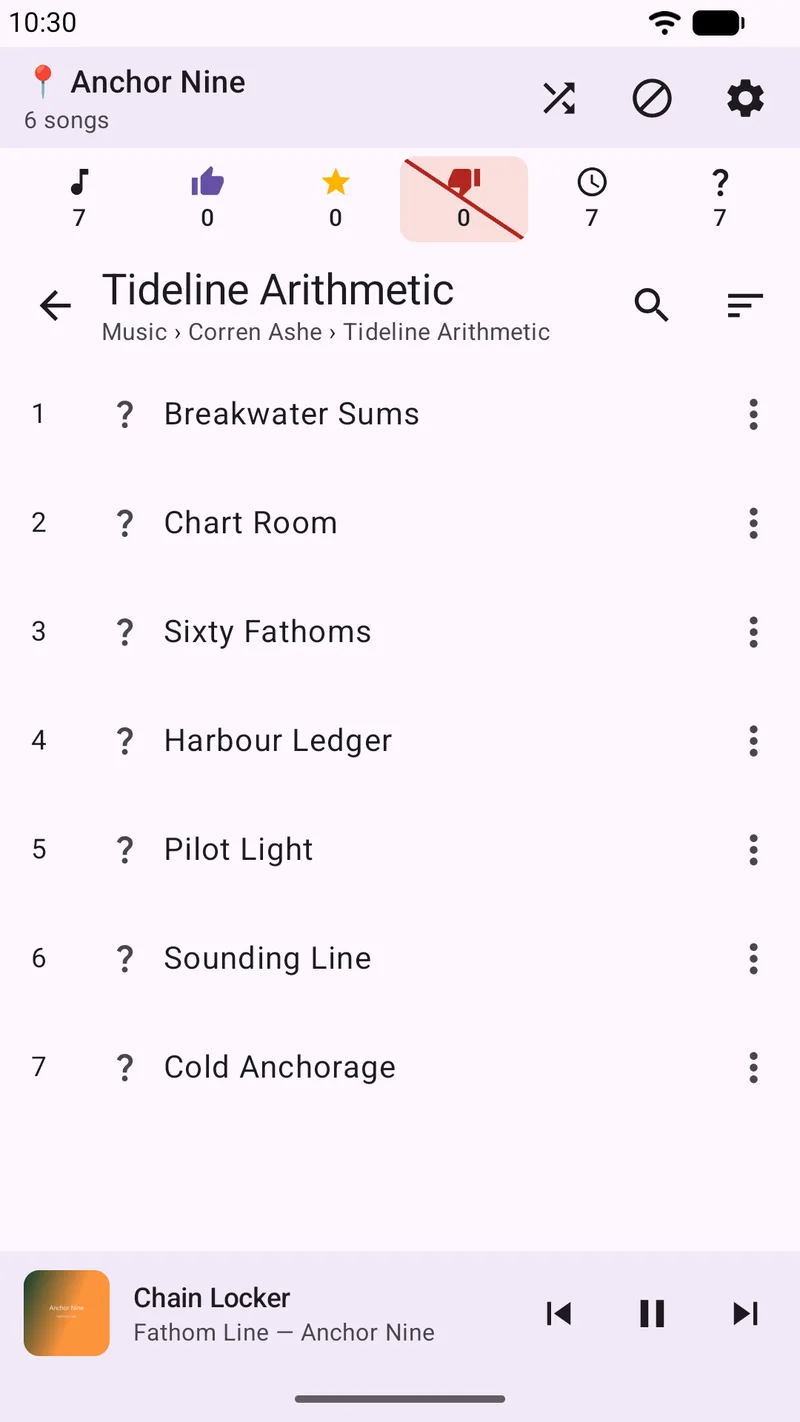
Browsing continues while a song plays. Starting playback does not trap you in a player screen. The mini player stays pinned at the bottom while you carry on navigating anywhere else in your library, and the pin at the top of the screen keeps reminding you where the current queue came from.
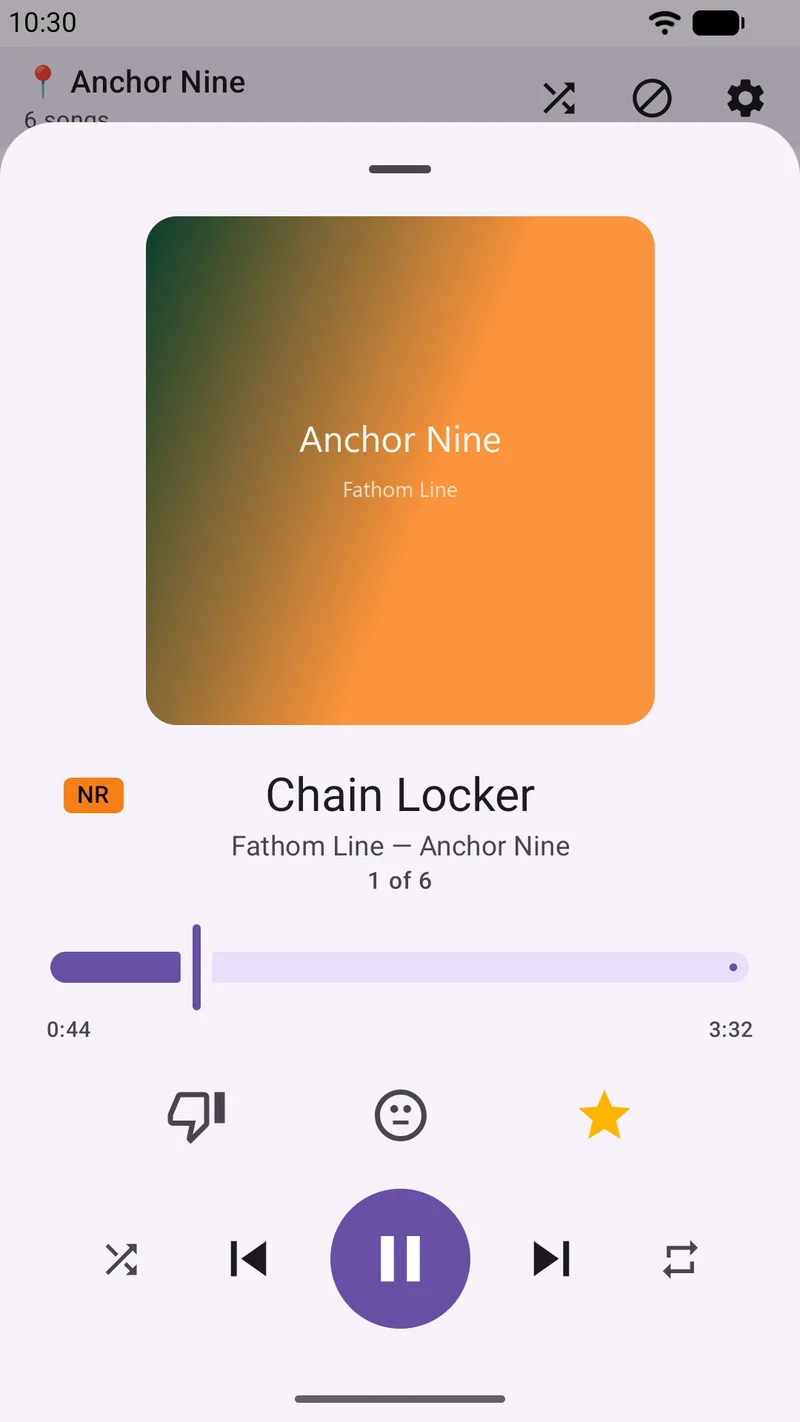
Tap the mini player to open the full player, with artwork, a seek bar, the transport controls and the rating buttons.
Ratings
Ratings are not decoration — they are what drives the filter in the next section, so it is worth knowing what each one does, not just what it looks like.
| Rating | How you set it | What it does |
|---|---|---|
| Favourite | Tap thumbs-up a second time. | Your best songs. Selectable on its own as a filter, so you can play nothing but favourites from any folder. |
| Liked | Tap thumbs-up once. | Songs you want to keep hearing. Included whenever the thumbs-up filter is on. |
| Neutral | Tap the neutral face. | A deliberate “I have heard this and I have no strong feeling.” Distinct from not rated, so a song you have judged stops resurfacing as unrated. |
| Disliked | Tap thumbs-down. | Skips the song immediately and excludes it from normal playback from then on. This is the default filter, so a thumbs-down is effectively “never play this again.” |
| Not rated | The starting state. | Plays normally. Filterable on its own, which is how you find what you have not judged yet. |
You can rate from the full player, from a song's info sheet, or straight from a track row. Ratings, play counts and skip counts all live in SongTrail's own database — nothing is written into your files.
Filters
This is the feature most worth reading twice, because it is the one people misunderstand.
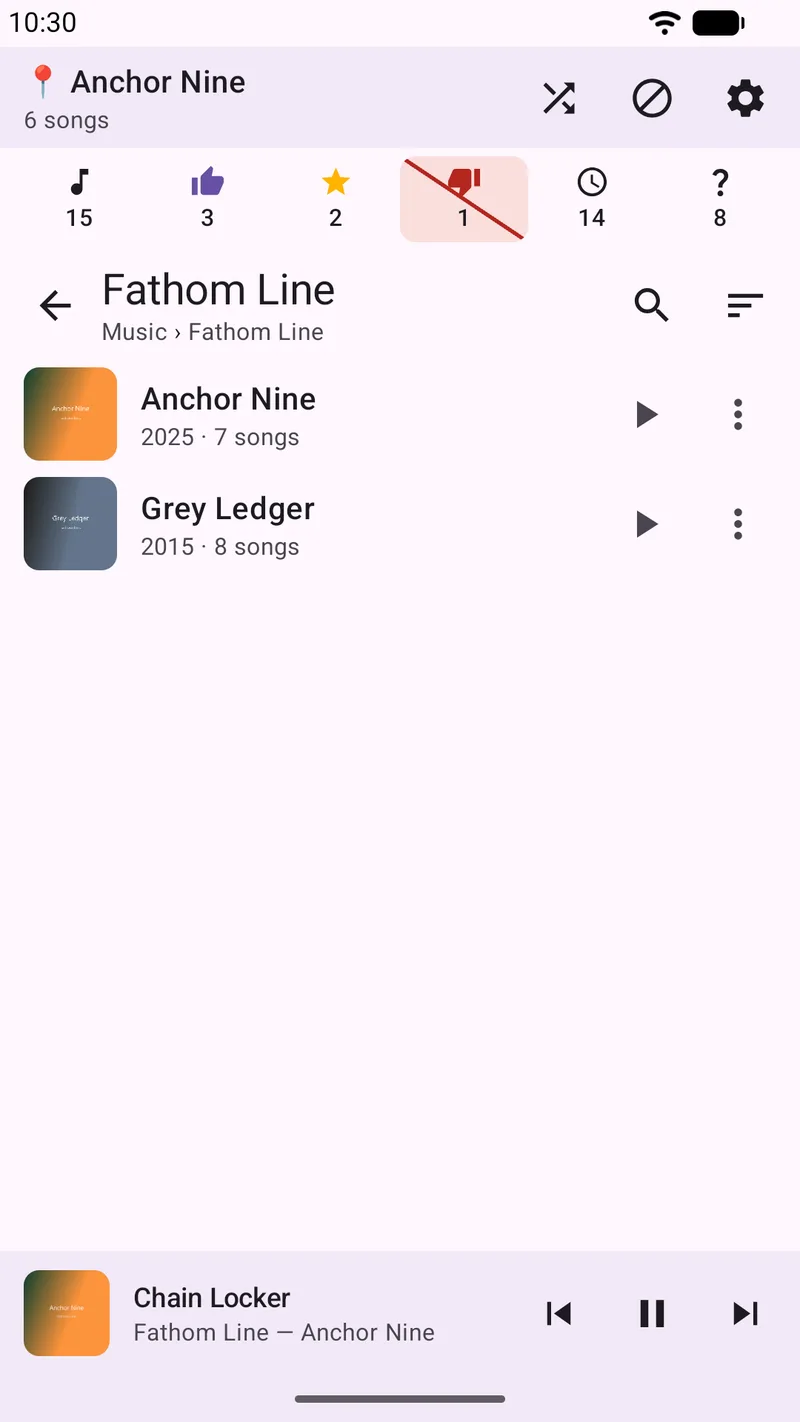
The strip of counts near the top of the screen — total, thumbs-up, favourites, thumbs-down, never-played, unrated — is not a read-out. It is the filter control. Whichever cell is highlighted is the filter that is currently in force, and exactly one is always active.
What makes it powerful, and what makes it confusing, is that the filter is:
- Global. It applies everywhere in the app, not just to the folder you are looking at.
- Persistent. It survives navigation and restarts. It stays on until you change it.
- Applied to both shuffle and in-order playback, at every level of the tree.
By default the filter is exclude thumbs-down. That is why a disliked song simply stops appearing in playback: it has not been deleted, it is being filtered out.
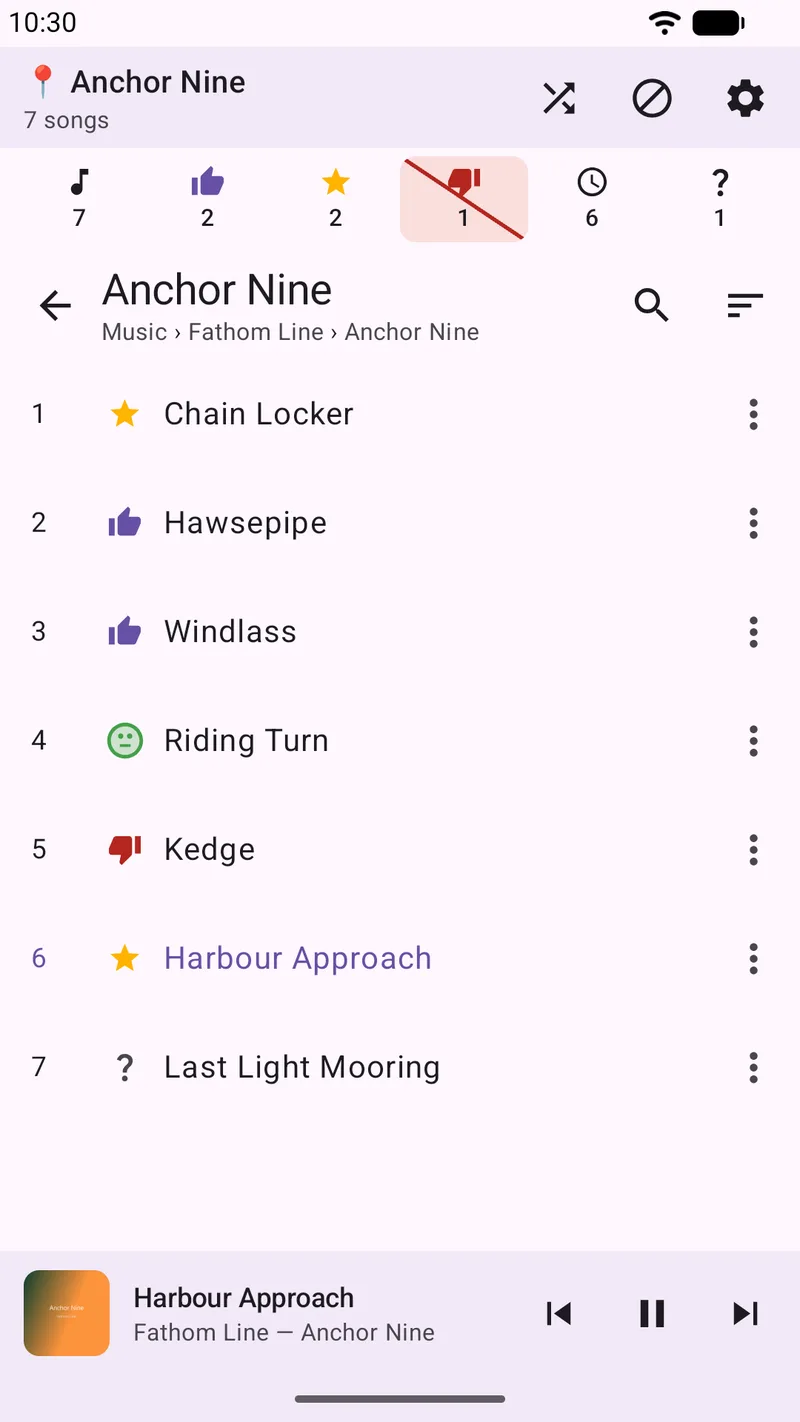
A worked example. The album below has seven songs, one of which is rated thumbs-down.
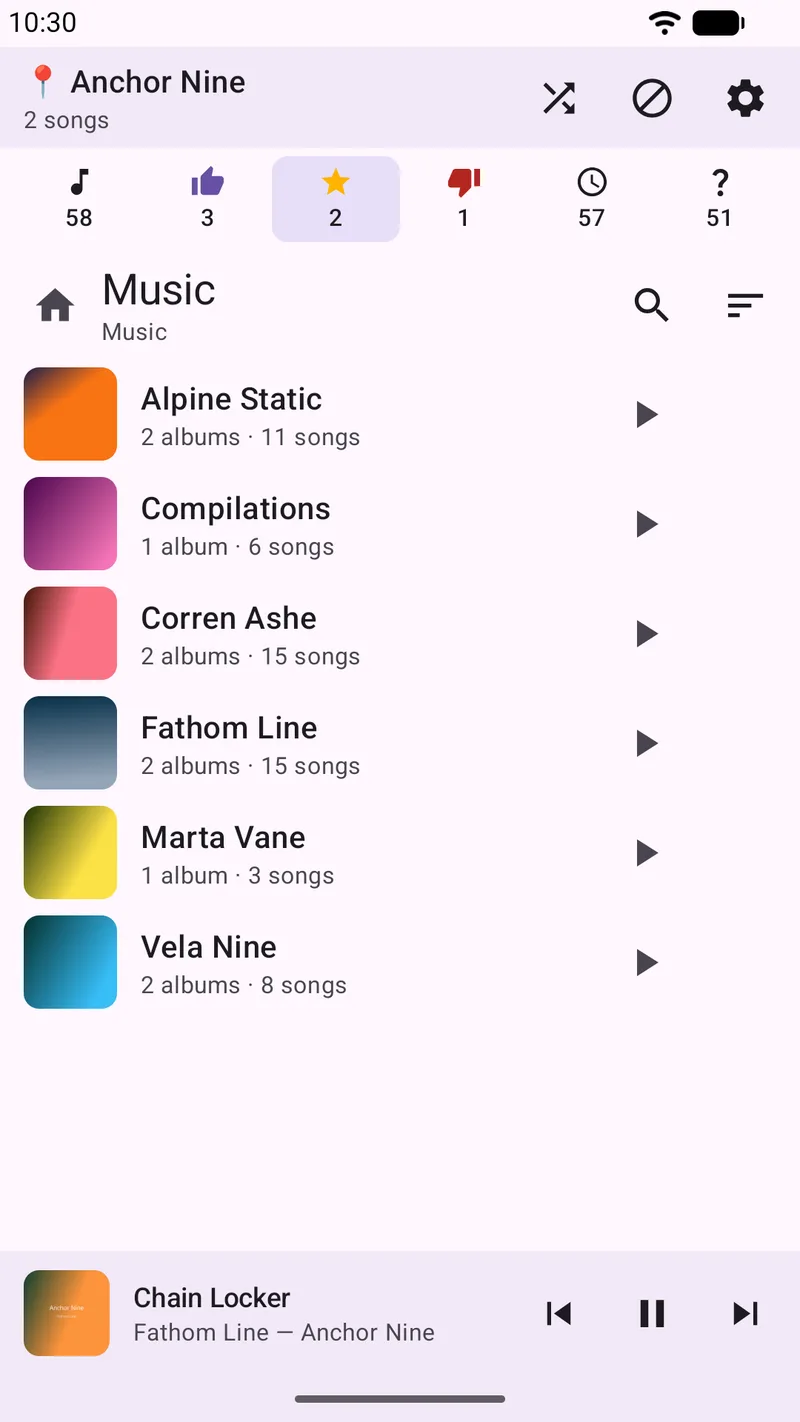
Switch the filter and the same origin produces a different queue. With favourites only selected, that seven-song album yields a queue of two.
Search and saved searches
Search cuts across your folder structure entirely. It is the one place where the folder tree gets out of the way, which makes it the right tool for “that song, somewhere, I think it had this word in it.”
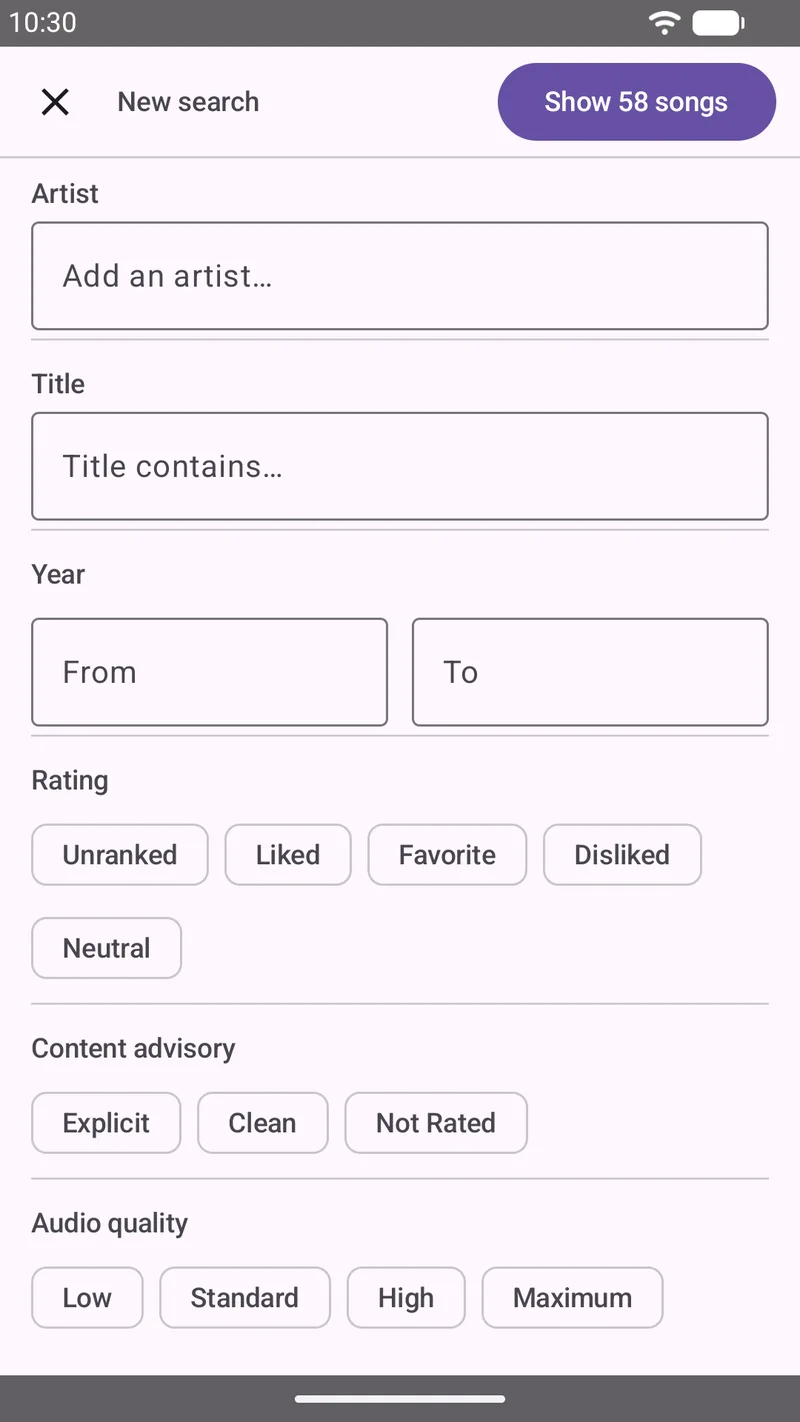
You can search on, and combine, any of:
- Artist and title text
- A year range
- Rating — unranked, liked, favourite, disliked, neutral
- Content advisory — explicit, clean, not rated
- Audio quality — low, standard, high, maximum, derived from each file's bitrate and format
The results are a live queue: play them in order, shuffle them, or rate straight from the list, exactly as in any folder.
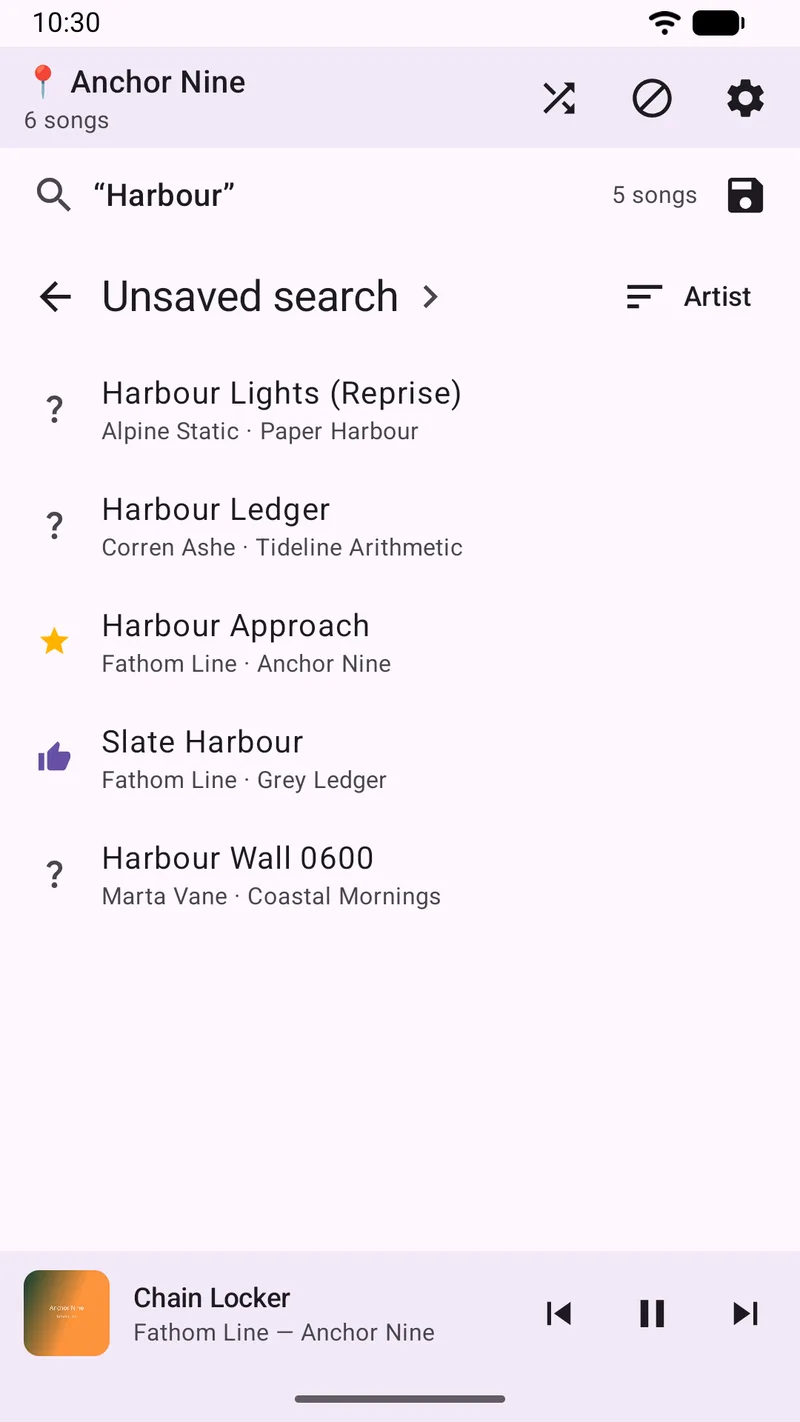
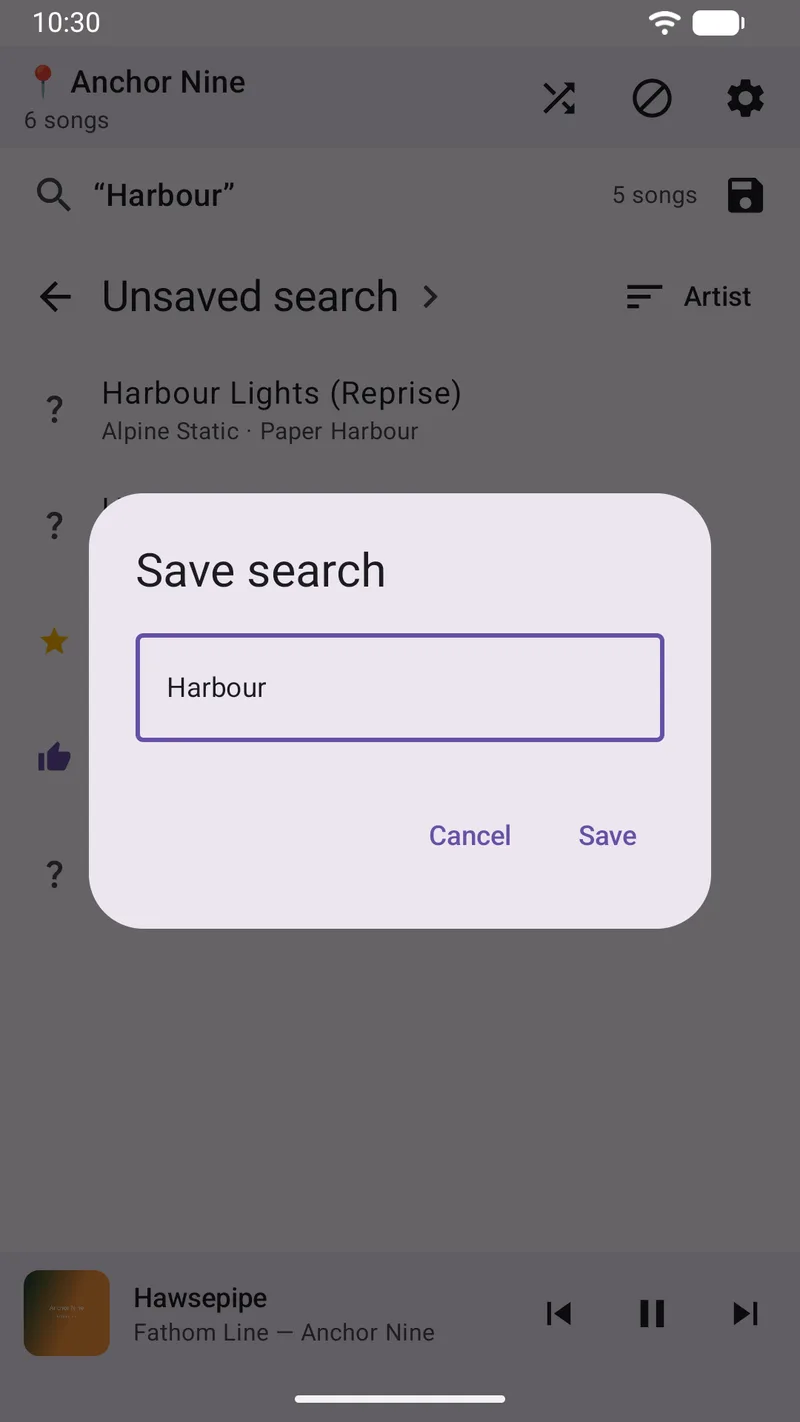
Saved searches turn a set of criteria into something you can come back to. Tap the save icon, give it a name, and it appears by name in the selector instead of “Unsaved search”.
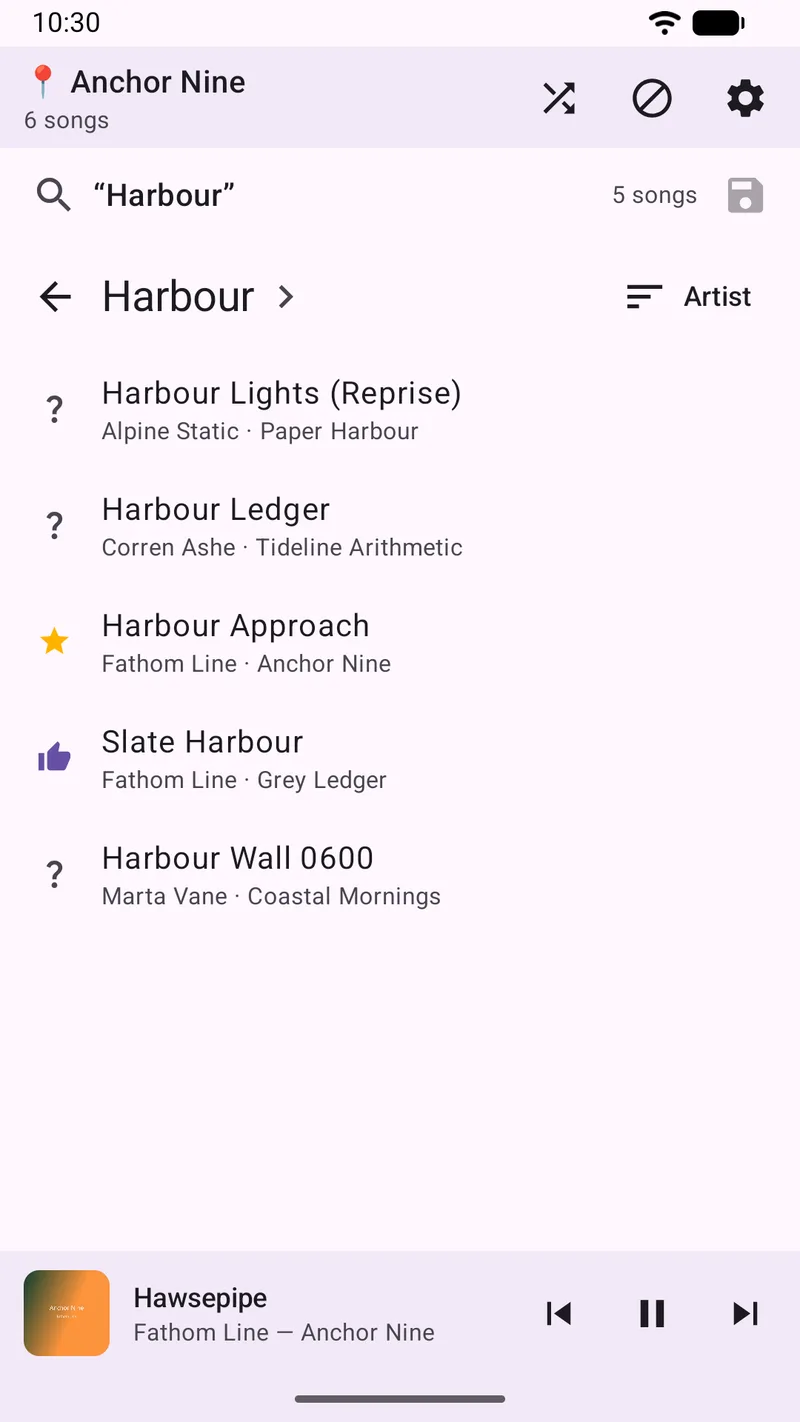
Note that the global filter from Section 05 is bypassed inside search: a search means you are asking for something specific, so it returns what you asked for.
Car mode
Car mode makes the rating controls large enough to hit without looking. The thumbs move above the album art and grow, the transport comes with them, and a rating gives you a short buzz so you know it landed.
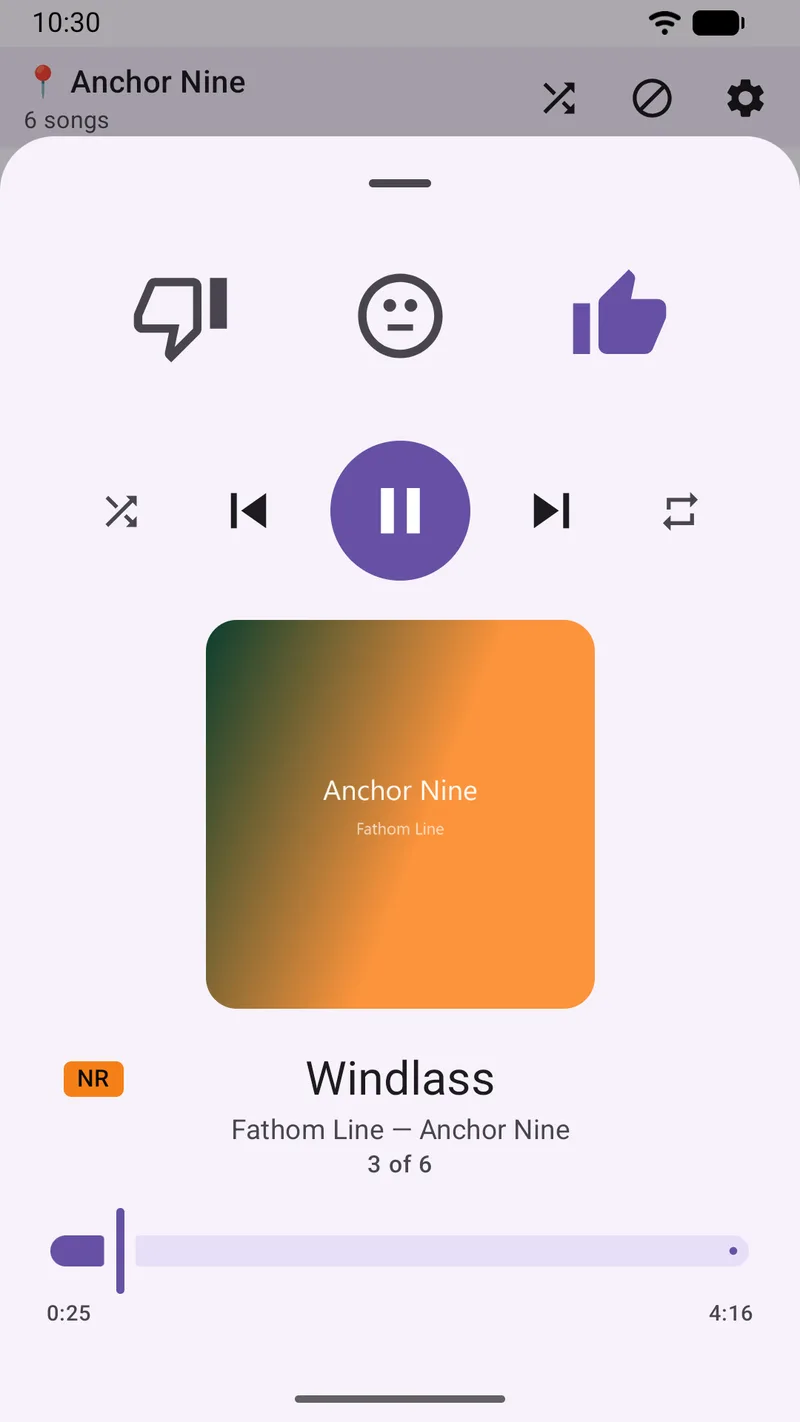
There are two ways to turn it on, and the difference matters:
- Car mode now — a manual switch in Settings. It needs no permission at all. If you would rather not grant anything, this is the whole feature, working.
- Auto-detect my car — turns car mode on by itself when your car's Bluetooth connects. This one does need Bluetooth permission, because SongTrail has to read the name and device class of the connected device to tell whether it is a car.
The first time a car-like Bluetooth device connects, SongTrail offers to tag it as yours, so it only triggers for your car and not for a pair of headphones.
Censor mode
Censoring can mute profanity in a song as it plays, leaving the music underneath intact. It is off by default, and it is the only part of SongTrail that ever touches the network.
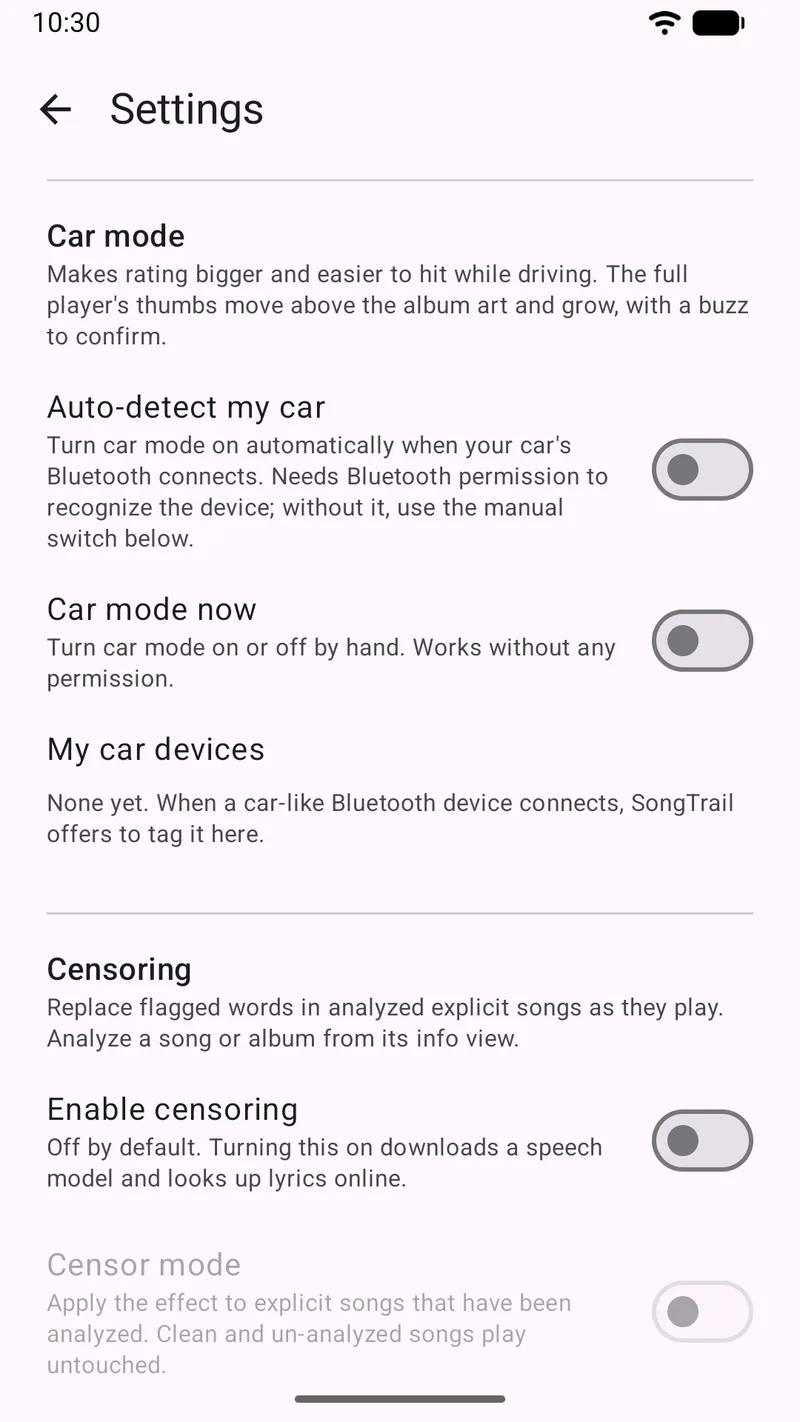
Turning it on has two consequences, both disclosed on that screen: SongTrail downloads a speech-analysis model once, and it looks up lyrics online for each song you choose to analyse.
Analysis is per-song, and always something you start. It never runs across your library on its own. You trigger it from a song's info sheet — reachable from the three-dot menu on any track row.
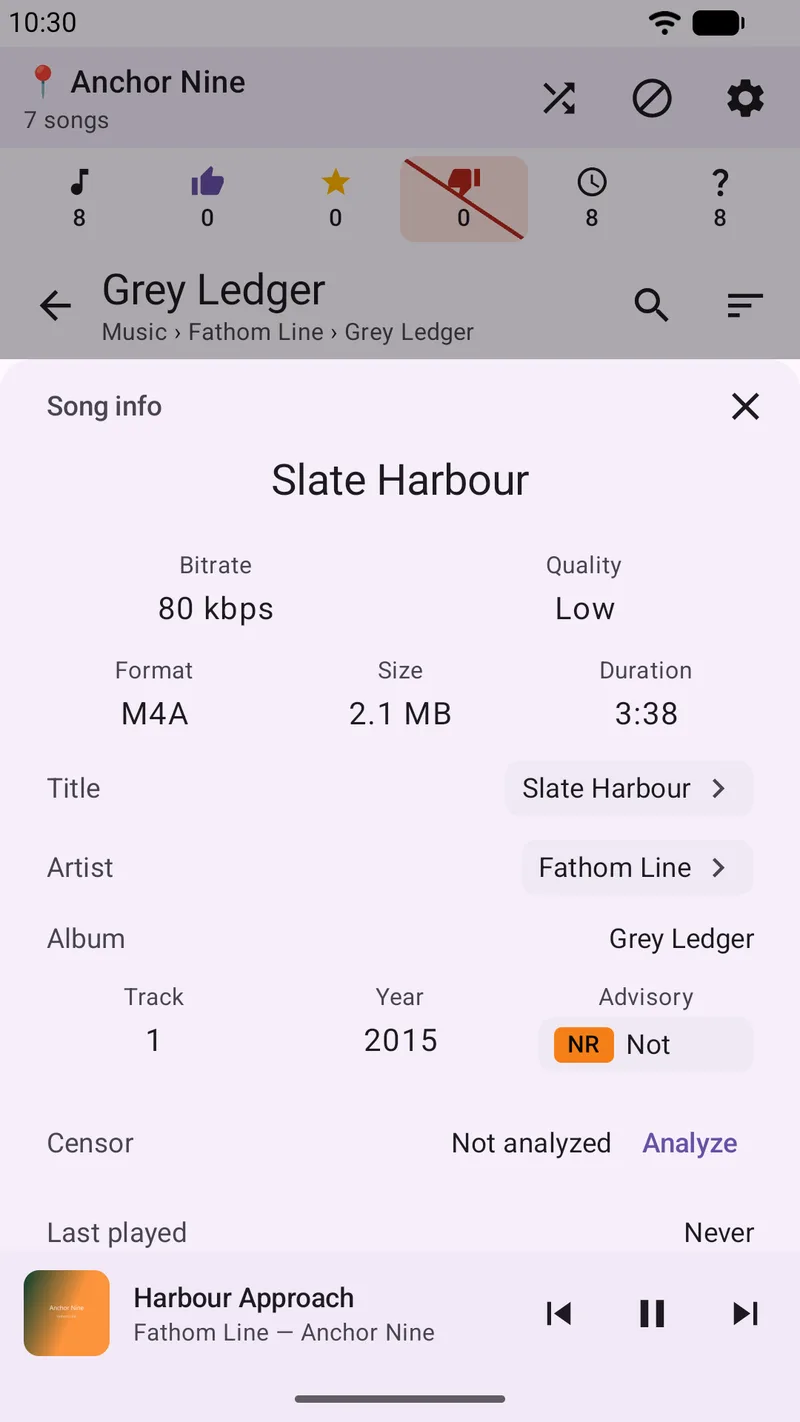
When an analysis succeeds, SongTrail stores a map of where the flagged words fall in that track. From then on, with censor mode on, those words are muted in place as the song plays — the music continues, only the flagged moments are affected. A song found to contain profanity is also marked explicit, which means you can then find it by content advisory in search (Section 06).
Marking only ever moves toward explicit. A clean analysis is not proof of a clean song, so SongTrail will never mark a track clean on the strength of having found nothing.
When lyrics cannot be found — and for some music they simply will not be — the analysis stops without writing anything and tells you so. You will see a message on the same Censor row reading “No lyrics found” together with an estimate, and an action offering a slow scan.
The slow scan is the fallback: instead of aligning against known lyrics, SongTrail listens to the track itself with a speech-recognition model. It needs no lyrics and works offline, but it is dramatically slower — minutes per track rather than seconds — which is why it is offered as a choice rather than run automatically. The estimate shown is there so you can decide whether it is worth it. Your options at that point are simply to accept the slow scan, or to leave the song unanalysed.
Other outcomes get their own message rather than being reported as a missing-lyrics result — a song with no artist tag to search on, or one too long to align, will say so.
This section shows where the feature lives and how to start it. The screenshots stop before a completed analysis, because the library used for this guide is synthetic and its invented artists have no lyrics to look up — and a fabricated success screen would not be worth showing you.
Backup and restore
Your ratings, play counts, corrected titles and saved searches live in SongTrail's database, not in your music files. That is what makes them safe from re-tagging — and it is also why they are worth exporting before you change phones.
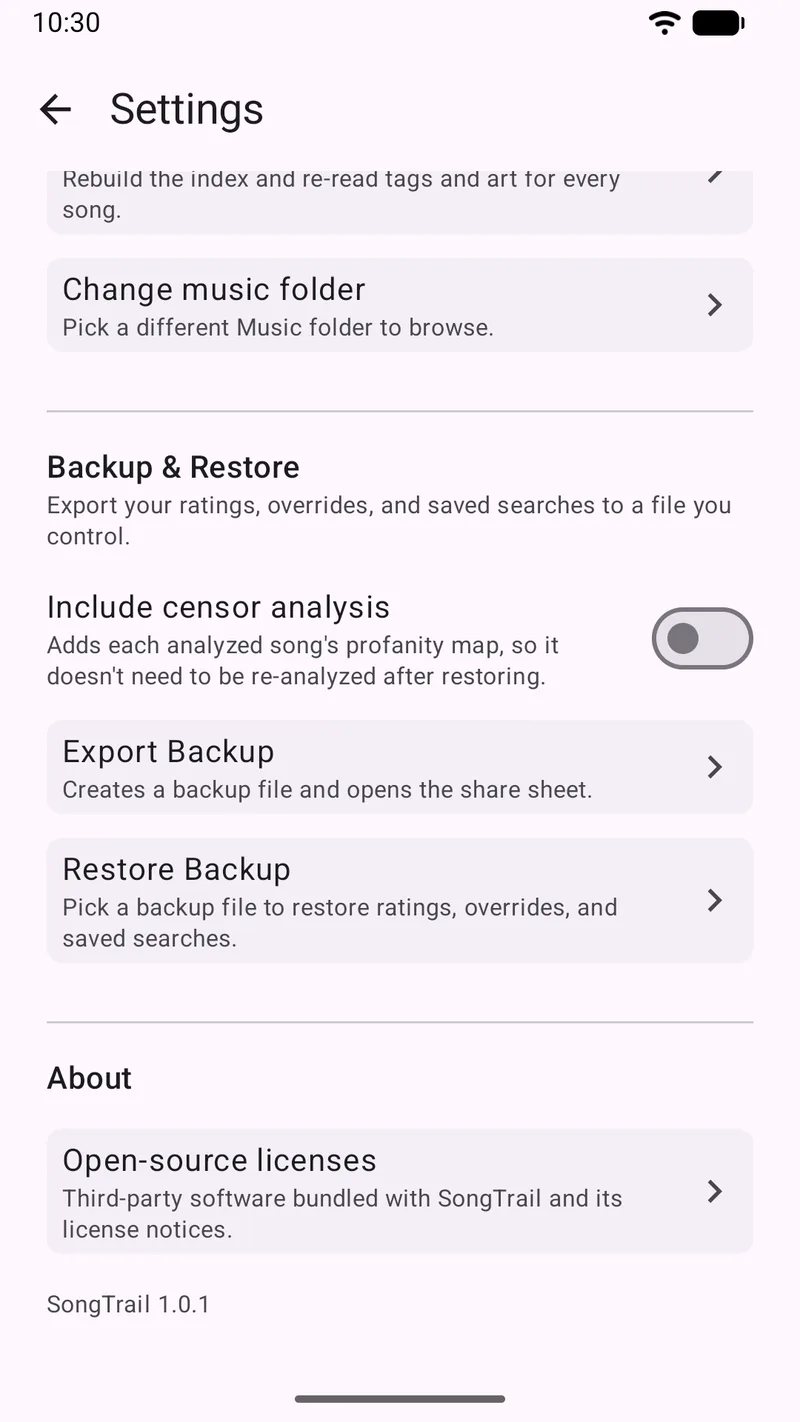
.strbak file and hands it to the Android share sheet, so you choose where it goes.A backup contains your ratings, play and skip counts, any titles, artists, album names or dates you have corrected, your content-advisory markings and your saved searches. Optionally it can also include your censor analysis results, so analysed songs do not have to be analysed again after a restore.
It does not contain your music. The file is small, and it is a record about your library rather than a copy of it.
- On the old phone, open Settings → Export Backup and send the
.strbakfile somewhere you can reach it — cloud storage, email to yourself, a cable transfer. - Copy your music to the new phone, and set SongTrail up there as in Section 02.
- On the new phone, open Settings → Restore Backup and pick the file. You can also
simply open a
.strbakfile from your file manager and SongTrail will offer to restore it.
A restore matches the songs in the backup against the songs it can actually see, and shows you what it found before it changes anything. It uses the same matching described in Section 10, so your folders do not need to be arranged identically on the new phone.
Reorganizing your library
Here is the problem this section is really about. In most players, ratings and play counts are pinned to a file path. Tidy up your folder names and the app quietly loses track of which song was which — and years of ratings evaporate. It is the reason a lot of people never reorganise their music at all.
SongTrail is built to survive it. When a song is no longer where it used to be, the app does not give up on the rating; it goes looking for the song. It matches on what actually identifies a file — its name, its size, and the title and artist it carries — rather than on where it happened to be sitting. And it re-homes a whole folder's worth of ratings together, in one pass.
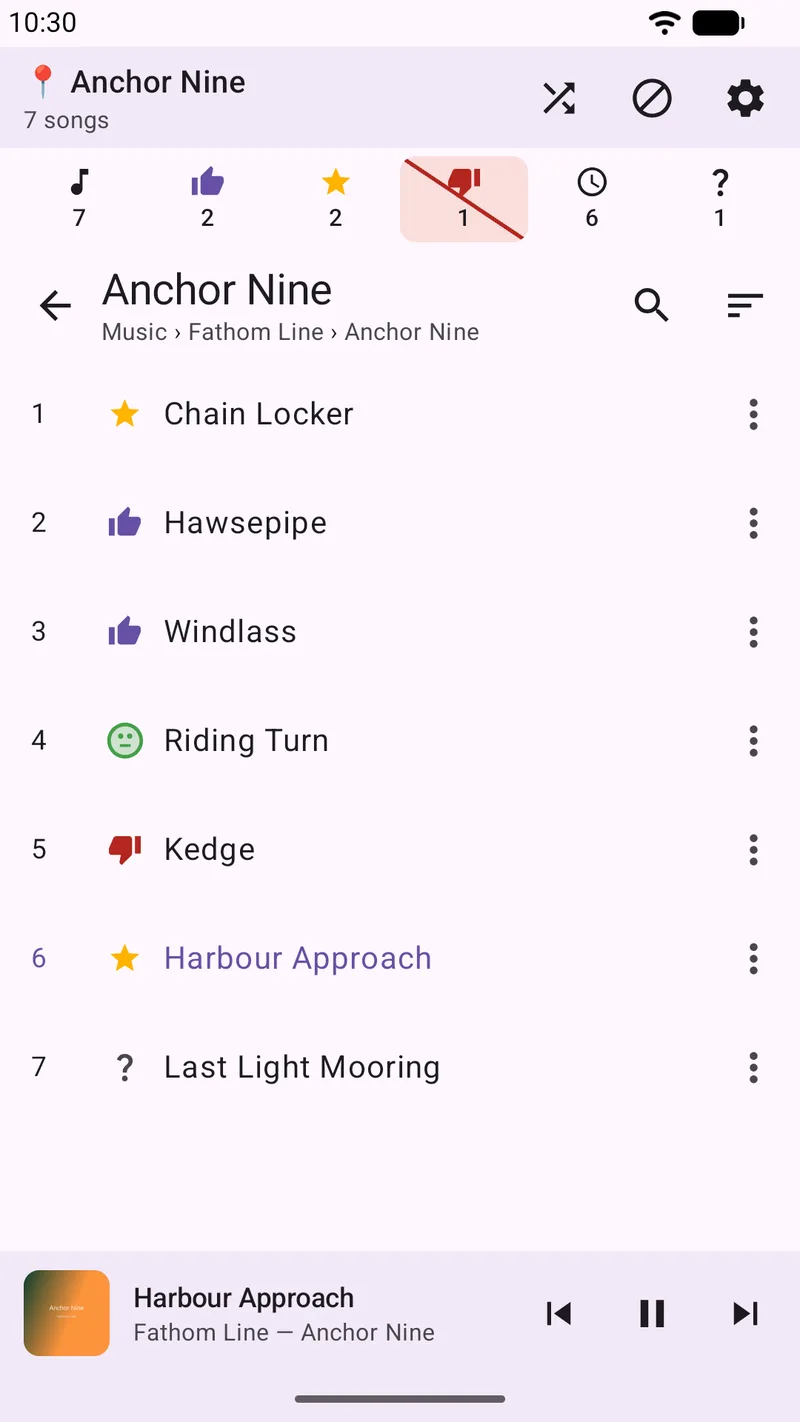
In practice that means you rename the folder, and nothing happens. Nothing is the correct outcome. The album below was renamed on disk from Anchor Nine to Anchor Nine (Deluxe); compare it with the same album in Section 04, before the rename.
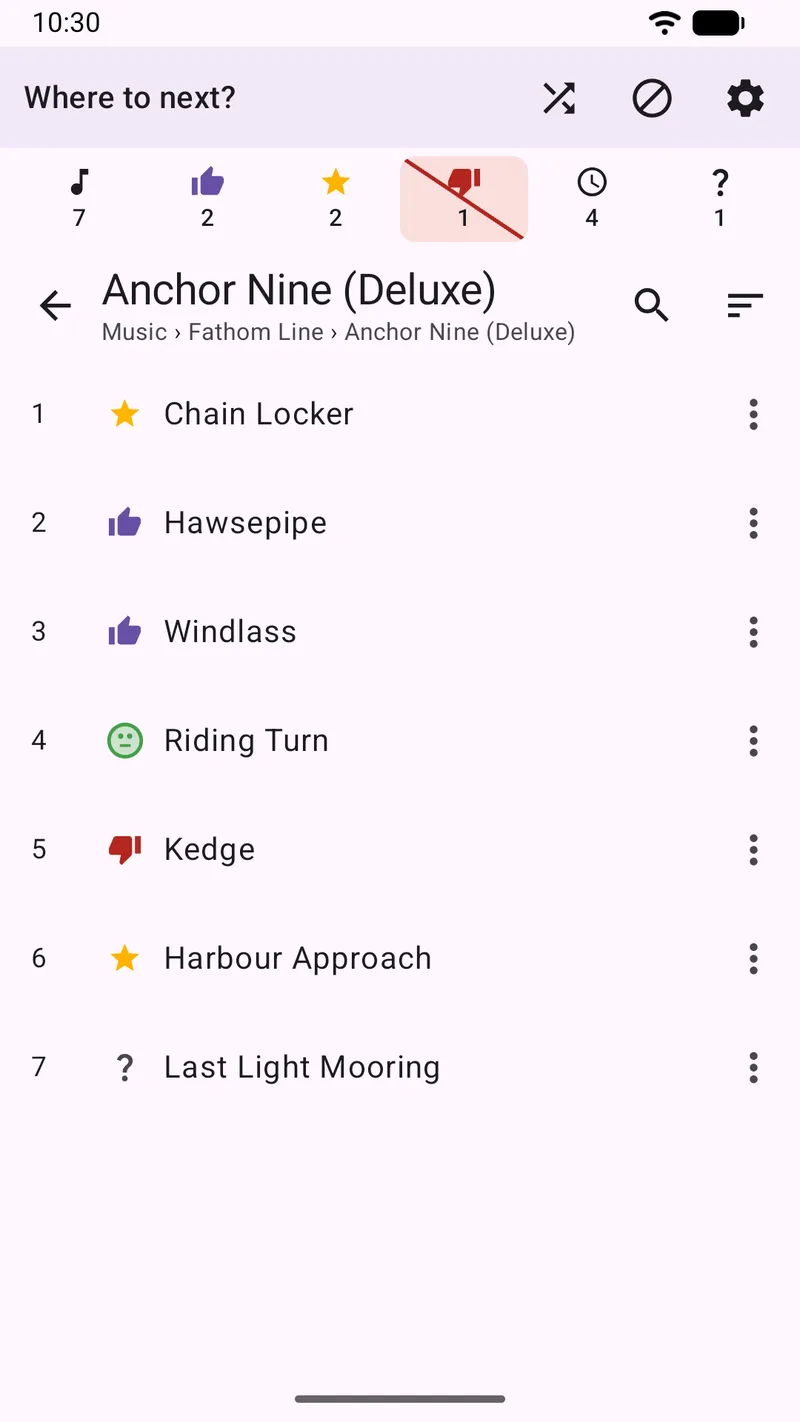
The same machinery covers moving an album between artist folders, correcting a misspelled folder name, or restoring a backup onto a phone where the music is arranged differently.
Troubleshooting & FAQ
Some of my songs are not showing up.
- Check the file type. SongTrail plays MP3 and M4A. FLAC, WAV, OGG, WMA and DRM-protected files are not supported and will not appear.
- Check the folder. SongTrail only reads beneath the single folder you chose. Music somewhere else on the phone is invisible to it — use Settings → Change music folder to point it somewhere else, or pick a parent folder that covers everything.
- If you added files recently, run Settings → Rescan. Normal launches look for changes, but a rescan is the direct way to force it.
SongTrail says it has lost access to my folder.
Android can revoke a folder grant — typically after the app is reinstalled, or if you clear its data or withdraw the permission in system settings. Nothing is lost: pick the folder again and your existing ratings reattach to the songs as described in Section 10.
My ratings disappeared after reinstalling.
Uninstalling removes the app's database. If you have a .strbak export, restore it
(Section 09). This is exactly why the export exists — take one before any reinstall.
Can I stream from Spotify, YouTube Music, or my NAS?
No, and this is a design decision rather than a missing feature. SongTrail is for the files you already own, on the device in your hand. It has no accounts, no backend and no streaming, which is what lets it work with no network at all and collect nothing about you.
Will SongTrail change my files or my tags?
Never. Corrections you make in the app — titles, artists, album names, dates, advisory markings — are stored in SongTrail's own database and displayed over the file. Your files are opened read-only.
Why does an album show the wrong year, or no year?
The year comes from the file's tags. If it is missing or wrong there, you can correct it on the album's info sheet, and that correction is stored in the app — not written back to the file.
Does it work with Bluetooth, headsets and lock-screen controls?
Yes. Playback continues in the background with a media notification and lock-screen controls, and headset and car controls work as usual.
Requirements
| Android version | Android 13 or newer. |
| Audio formats | MP3 and M4A (AAC). Other formats, including FLAC, WAV and OGG, are not supported in this release. |
| Your music | Files stored on the device, inside one folder you nominate. No streaming service, no network library, no cloud account. |
| Network | Not required. The app is fully functional offline. A connection is used only if you enable the optional censoring feature. |
| Account | None. There is no sign-in. |
Contact
Questions, bug reports and feature requests are all welcome — SongTrail is built by one person and the mail is read.